The complete guide to Gameframe's integrated task tracking system
Read Time: 20 minutes
§Introduction: Why Another Task Tracker?#
You already have Trello. Or Jira. Or Asana. Or Linear. Why does Gameframe include its own task tracker?
The problem: Your tasks live in one tool. Your design docs live in another. The connection between them exists only in your head (or in copy-pasted links that go stale).
"Implement the new ability system" lives in Jira. The ability system design lives in Gameframe. When the design changes, the Jira ticket doesn't know. When the ticket is completed, the design doc doesn't reflect it. You're constantly context-switching, cross-referencing, and hoping things stay in sync.
The Quest Log solution: Tasks and documents in the same place, linked bidirectionally. When you open a design doc, you see related tasks. When you open a task, you see related docs. When a branch is merged, the linked quest can auto-update.
Plus, it's game-themed. Because you're making games, not filing TPS reports.
§Part 1: Understanding the Quest Log#
Core Concepts#
Quests: Individual tasks or to-do items. Each quest has a title, description, status, priority, assignee, and optional metadata.
Statuses: Quests flow through stages:
- —Planned — Backlog, future work
- —In Progress — Currently being worked on
- —Review — Needs approval or feedback
- —Completed — Done (but still visible)
- —Archived — Done and hidden from default view
Milestones: Group quests by sprint, release, or project phase.
Links: Connect quests to documents, branches, reviews, and other quests.
The Interface#
The Quest Log has two main views:
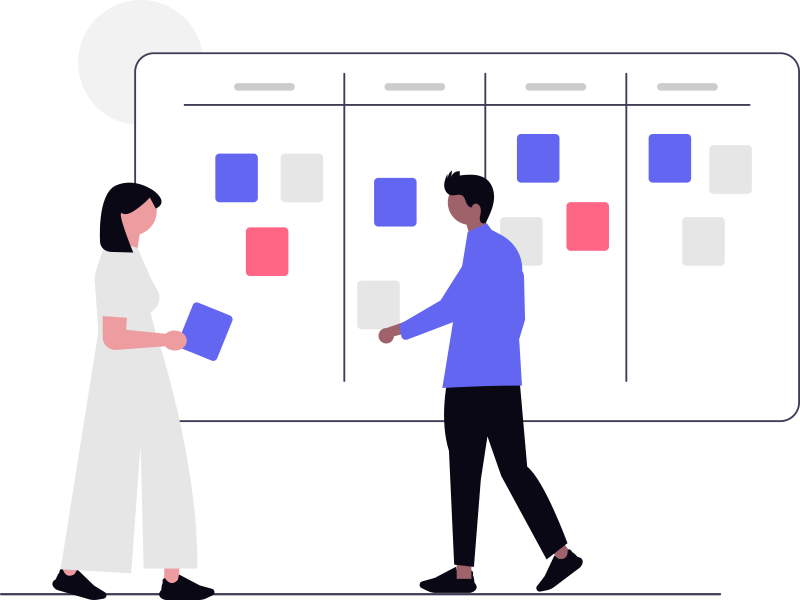
Kanban View (default):
- —Columns for each status
- —Drag and drop between columns
- —Visual overview of work distribution
- —Best for: Daily work, standups, small teams
List View:
- —Sortable table format
- —More quests visible at once
- —Filter and search focused
- —Best for: Large backlogs, reporting, filtering
Toggle between them with the K and L keys.
Quest Cards#
Each quest card shows at a glance:
- —Title — What needs to be done
- —Priority indicator — Color-coded (red=urgent, orange=high, yellow=medium, gray=low)
- —Assignee avatar — Who's responsible
- —Due date — If set
- —Link count — Number of linked resources
- —Comment count — Team discussion
Click a card to expand and see full details.
§Part 2: Creating Quests#
Method 1: Quick Create (Keyboard)#
The fastest way:
- 1.Press N (or C for create)
- 2.Type your quest title
- 3.Press Enter to create
The quest is created in "Planned" status with no assignee. You can edit details after.
Pro tip: Add inline metadata while typing:
- —
Fix warrior balance @sarah #urgent— Assigns to Sarah, sets urgent priority - —
Update tutorial due:friday— Sets due date
Method 2: Full Create Dialog#
For quests that need details upfront:
- 1.Click "New Quest" button
- 2.Fill in the form:
- Title (required)
- Description (rich text, supports markdown)
- Status (default: Planned)
- Priority (Urgent/High/Medium/Low)
- Assignee (dropdown of team members)
- Due date (date picker)
- Milestone (dropdown of active milestones)
- Labels (custom tags)
- 1.Click Create
Method 3: From Documents#
Create quests directly from design docs:
- 1.Open a document
- 2.Select text describing a task (e.g., "Need to add cooldown to fireball")
- 3.Right-click → "Create Quest from Selection"
- 4.The quest is created with:
- Title from the selected text
- Automatic link to the source document
- Reference to the specific section
This is powerful: the quest is born connected to its context.
Method 4: Bulk Create#
Planning a sprint? Create many quests at once:
- 1.Click "Bulk Create"
- 2.Enter one quest per line:
```
Implement dash ability
Add dash cooldown UI
Create dash sound effects
Test dash on all surfaces
```
- 1.Set defaults (all quests get same assignee, priority, milestone)
- 2.Click "Create All"
Ten quests in ten seconds.
Method 5: From Templates#
For recurring quest types:
- 1.Open Templates in Quest Log settings
- 2.Create a template (e.g., "New Character Quest Bundle")
- 3.When needed, click "Create from Template"
- 4.A set of pre-configured quests is created
Great for standardized workflows like "every new character needs: design doc, concept art, 3D model, animations, sounds."
§Part 3: Quest Details and Editing#
The Quest Detail Panel#
Click any quest to open the detail panel:
Header:
- —Title (editable)
- —Status dropdown
- —Priority dropdown
- —Close button
Body:
- —Description — Rich text area with markdown support
- —Activity — Timeline of changes, comments, links
- —Linked Resources — Documents, branches, other quests
Sidebar:
- —Assignee picker
- —Due date picker
- —Milestone selector
- —Labels
- —Created/updated timestamps
Editing Quests#
Most fields are editable inline:
- —Click the title to edit
- —Click status to change
- —Click assignee to reassign
- —Use the description area for longer notes
Changes are saved automatically. History is tracked.
Comments and Discussion#
Each quest has a comment thread:
- 1.Scroll to the Activity section
- 2.Type in the comment box
- 3.Use @mentions to notify teammates
- 4.Use markdown for formatting
Comments are great for:
- —Design discussions
- —Progress updates
- —Questions and answers
- —Decision records
Quest History#
Every quest tracks its history:
- —When it was created
- —Status changes (with timestamps)
- —Assignee changes
- —Priority changes
- —Who made each change
Access via the History tab in the detail panel.
§Part 4: Organizing Quests#
Priorities#
Four priority levels:
| Priority | Color | Use For |
|---|---|---|
| Urgent | Red | Blockers, critical bugs, ship-stopping issues |
| High | Orange | Important for current sprint |
| Medium | Yellow | Normal work items |
| Low | Gray | Nice-to-have, backlog |
The golden rule: If everything is Urgent, nothing is. Reserve Urgent for true emergencies.
Milestones#
Group quests by time period or release:
- 1.Go to Quest Log → Milestones
- 2.Click "Create Milestone"
- 3.Enter name (e.g., "Sprint 12", "Alpha Release", "Boss Polish Pass")
- 4.Set optional start/end dates
- 5.Save
Now when creating or editing quests, assign them to this milestone.
Milestone view:
- —Filter quests by milestone
- —See progress bars (% complete)
- —Great for sprint planning and reviews
Labels/Tags#
Custom labels for additional categorization:
- —"bug" vs "feature" vs "polish"
- —"combat" vs "UI" vs "audio"
- —"blocked" vs "waiting-on-art"
Create labels in settings, then apply to quests. Filter by label.
Assignees#
Every quest can have one assignee (the person responsible).
Unassigned quests are dangerous. They tend to be forgotten. Make assignment a habit during planning.
§Part 5: Finding and Filtering Quests#
Quick Filters#
One-click filters in the toolbar:
- —All Quests — Everything (except archived)
- —My Quests — Assigned to you
- —Urgent — Urgent priority only
- —Due Soon — Due within 7 days
- —Unassigned — Needs owner
- —Archived — Completed and archived
Advanced Filters#
Click the filter icon for powerful filtering:
Filter by:
- —Status (multi-select)
- —Priority (multi-select)
- —Assignee (multi-select)
- —Milestone
- —Labels
- —Due date range
- —Created date range
- —Has linked documents (yes/no)
Filters combine with AND logic. "High priority" + "Assigned to me" shows only your high-priority work.
Search#
Press / to focus the search box. Search looks at:
- —Quest titles
- —Quest descriptions
- —Comments
- —Linked document names
Saved Views#
Create reusable filter combinations:
- 1.Set up your filters (e.g., "My Quests" + "High Priority" + "Sprint 12")
- 2.Click the Bookmark icon
- 3.Name the view: "My Sprint Focus"
- 4.Save
Now one click applies all those filters. Access saved views from the dropdown.
Recommended saved views:
- —"My This Week" — Your quests due in 7 days
- —"Sprint [N] Board" — All quests for current sprint
- —"Blocked" — All quests with "blocked" label
- —"Needs Review" — Quests in Review status
- —"Unassigned Backlog" — Unassigned quests to triage
Sorting (List View)#
In list view, click column headers to sort:
- —Title (alphabetical)
- —Priority (high to low)
- —Due date (soonest first)
- —Created date (newest first)
- —Assignee (alphabetical)
Click again to reverse sort order.
§Part 6: Linking Resources#
Why Links Matter#
Links create bidirectional connections:
- —Quest → Document: See what spec this task is about
- —Document → Quest: See what work is happening on this doc
- —Quest → Branch: Track which branch implements this quest
- —Quest → Quest: Dependencies and relationships
Linking Documents#
- 1.Open a quest
- 2.Click "Link" → "Document"
- 3.Search for the document
- 4.Click to link
Now:
- —The quest shows the linked document
- —The document shows the linked quest
- —Changes propagate (if doc is updated, you see it from quest)
Linking Branches#
When you create a branch for a specific quest:
- 1.Open the quest
- 2.Click "Link" → "Branch"
- 3.Select the branch from dropdown
This tracks:
- —Which branch addresses this quest
- —Status of the branch
- —When it's merged
Linking Reviews#
When a branch is ready to merge:
- 1.Submit the branch for review
- 2.The review inherits the branch's quest links
- 3.When merge completes, quest can auto-update status
Configure in settings: "Auto-complete quests on merge"
Linking Other Quests#
For dependencies and relationships:
- 1.Open a quest
- 2.Click "Link" → "Quest"
- 3.Choose relationship type:
- Blocks — This quest must be done first
- Is blocked by — This quest depends on another
- Related to — Loosely connected
Blocked quests show warning indicators in Kanban view.
§Part 7: Team Workflows#
Daily Standup#
Run standups directly from Quest Log:
- 1.Open Quest Log
- 2.Filter: "Team: [Your Team]" + "In Progress"
- 3.Go around the team, each person:
- Reviews their In Progress quests
- Moves completed items to Review
- Notes any blockers
- 1.Check Urgent/Blocked quests together
- 2.Time: 15 minutes max
The board IS the standup. No separate status updates needed.
Sprint Planning#
- 1.Create milestone: "Sprint 14"
- 2.Review backlog: Filter to Planned + Unassigned
- 3.Estimate and prioritize: Discuss each item
- 4.Assign quests: Drag to team members
- 5.Set due dates: Based on sprint timeline
- 6.Link documents: Ensure each quest has context
Result: A clean sprint board with clear ownership.
Sprint Review#
- 1.Filter to milestone: "Sprint 14"
- 2.Toggle dashboard: Press D
- 3.Review metrics:
- How many quests completed?
- What's still In Progress?
- What got blocked?
- 1.Discuss incomplete items:
- Move to next sprint?
- Deprioritize?
- Split into smaller quests?
- 1.Archive completed quests: Bulk select → Archive
Backlog Grooming#
Weekly or bi-weekly:
- 1.Filter: Planned + Unassigned
- 2.Review each quest:
- Still relevant?
- Priority correct?
- Description clear?
- Can be broken down smaller?
- 1.Archive stale quests
- 2.Add new ideas that came up
A healthy backlog is a prioritized, groomed backlog.
§Part 8: The Stats Dashboard#
Accessing the Dashboard#
Press D to toggle the dashboard overlay.
Dashboard Metrics#
Total Quests: Count in current view (affected by filters)
Status Breakdown: Visual bar showing:
- —Planned: X%
- —In Progress: Y%
- —Review: Z%
- —Completed: W%
Priority Breakdown: Visual bar showing:
- —Urgent: X
- —High: Y
- —Medium: Z
- —Low: W
Completion Rate: Completed / Total (for current milestone)
Overdue Count: Quests past due date
Team Load: Quests per assignee (for capacity planning)
Using the Dashboard#
Sprint planning: Check team load before assigning more work.
Standups: Show completion progress, highlight overdue items.
Retrospectives: Review what got done, what didn't, why.
Stakeholder updates: Export or screenshot for progress reports.
§Part 9: Keyboard Shortcuts#
Power users live by these:
Navigation#
| Key | Action |
|---|---|
| G then Q | Go to Quest Log |
| K | Kanban view |
| L | List view |
| / | Focus search |
| Esc | Close modal/panel |
Quest Actions#
| Key | Action |
|---|---|
| N or C | New quest |
| E | Edit selected quest |
| Enter | Open selected quest |
| # | Set priority menu |
| A | Assign menu |
| M | Move to status menu |
View Actions#
| Key | Action |
|---|---|
| D | Toggle dashboard |
| R | Refresh |
| F | Open filters |
| Ctrl+/ | Show all shortcuts |
Selection (List View)#
| Key | Action |
|---|---|
| ↑ ↓ | Navigate quests |
| Space | Select/deselect |
| Ctrl+A | Select all |
§Part 10: Best Practices#
1. Keep Quests Small and Specific#
Good: "Add cooldown indicator to fireball ability"
Bad: "Improve combat system"
Small quests:
- —Are completable in a day or less
- —Have clear "done" criteria
- —Show progress more frequently
- —Are easier to estimate
2. Always Assign#
Unassigned quests are orphans. They drift, get forgotten, and eventually become "oh, we meant to do that."
Rule: Every quest in "In Progress" must have an assignee.
3. Link Everything#
A quest without links lacks context. Always link to:
- —The design doc it relates to
- —The branch implementing it (if applicable)
- —Related quests (blockers, dependencies)
4. Use Priorities Honestly#
Priority inflation is real. When everything is High, people ignore priority.
Reserve Urgent for: Production bugs, ship blockers, critical path items
High: Must do this sprint
Medium: Should do this sprint
Low: Backlog, nice-to-have
5. Archive Regularly#
Don't let Completed quests pile up. Archive weekly.
Archived quests aren't deleted—they're searchable and visible in the archive view. But they don't clutter your active board.
6. Review the Dashboard#
Before each standup, glance at the dashboard:
- —Are we making progress?
- —Is anything overdue?
- —Is workload balanced?
Data-informed standups are better standups.
7. Maintain the Backlog#
A backlog that grows forever is useless. Regularly:
- —Delete obsolete quests
- —Combine duplicates
- —Clarify vague titles
- —Reprioritize based on current reality
§Part 11: Troubleshooting#
"My quest disappeared"#
Check:
- 1.Are you filtering out its status?
- 2.Is it in a different milestone?
- 3.Was it archived? Check the archive view.
- 4.Was it deleted? Check activity log.
"The board is too cluttered"#
Solutions:
- 1.Archive completed quests
- 2.Use saved views to focus
- 3.Collapse irrelevant columns
- 4.Move to list view for dense data
"I can't find the right quest"#
Use search: Press / and type keywords.
Check filters: You might be filtering it out.
Check milestone: Wrong milestone selected.
"Team isn't using the Quest Log"#
Common causes:
- 1.Too much friction → Simplify with keyboard shortcuts
- 2.Existing tool habit → Make Quest Log the requirement
- 3.No integration → Ensure it links to docs they use
- 4.Not in workflow → Add to standup routine
§Summary#
The Quest Log gives you:
- —Integrated task tracking — Tasks and docs in one place
- —Bidirectional links — Quests ↔ Documents ↔ Branches
- —Kanban + List views — Work how you prefer
- —Powerful filtering — Find anything instantly
- —Saved views — Your workflows, one click
- —Team dashboard — Progress at a glance
- —Keyboard-first — Speed for power users
No more context switching between your docs and your task tracker. No more stale links. No more "which Jira ticket was that?"
Your quests and your design live together. As they should.
Related guides:
- —Branching Like a Pro - Link branches to quests for complete traceability
- —Version Control 101 - Understand how document versioning works
- —Getting Started - Set up your first workspace
Ready to unify tasks and docs? Start free and experience integrated project management.
Related Topics
About the Author
The Gameframe team builds version control tools specifically for game designers and studios. We understand the unique challenges of game development documentation.
Continue Reading
How to Write a Game Design Document (Step-by-Step)
A practical, no-fluff guide to writing a GDD that your team will actually read. Covers structure, common mistakes, and how to keep it alive as your game evolves.
GuidesGame Balance Spreadsheet: Complete Guide with Templates
Learn how to structure, maintain, and version-control your game balance spreadsheets. Covers stat tables, damage formulas, economy values, progression curves, and exporting to game engines.
GuidesConnect Your Game Design Docs to Claude Code (Step-by-Step)
A step-by-step tutorial for connecting Claude Code to your GameFrame workspace using the MCP server. Read GDDs, search entities, and compare versions from your terminal.
What's next
Start version controlling your game design docs today.
Join studios already using Gameframe to track changes, branch ideas, and keep their teams aligned.
Get started free